

Nodes
One step of a flow — what it reads, what it does, what it leaves behind.
A node is a single step in a flow: import images, filter a dataset, open a labeling queue, train a model, compare two detectors. Every node on your canvas is a placed copy of a node template from the Node Library. The template says what the node does and which inputs it takes, and your copy holds the values you chose.
Anatomy of a node
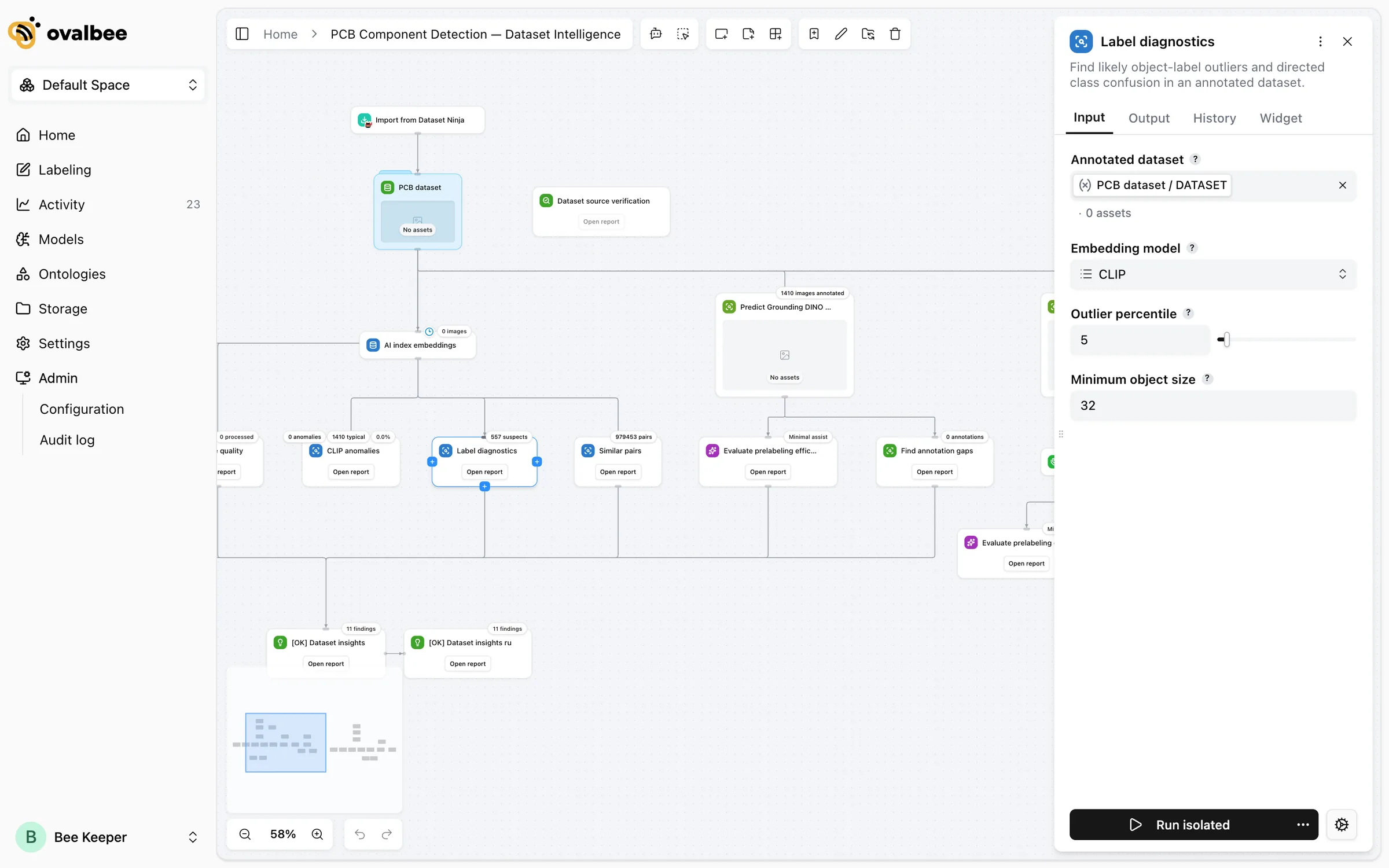
On the canvas a node shows:
- Its name and icon. Rename a node, change its icon or give it a description with Edit node (press
E). The template’s name stays visible in the sidebar. - A widget with the node’s main result: a preview of the images in a dataset, an Open report button, an Open annotation tool button, a file drop zone for imports, a table of who is labeling what. You can change or remove the widget in the Widget tab.
- Badges for things worth noticing at a glance: a count from the last run such as 11 findings, a clock when the node has a schedule, a red warning when a required input is missing.
- A status while it runs, and for a while after.
Select a node to open its sidebar:
The Run node button sits at the bottom of the sidebar. The cog next to it opens the node’s automation settings, such as a schedule. The Documentation link in the sidebar header opens the node’s page in the Node Library.
Inputs
Inputs are what a node needs to do its job. They come in many types: a dataset, a model, an ontology with a selection of classes, a secret, a list of people, a number, a choice from a list, a text prompt, a tag filter.
Each input is either:
- a value you type or pick in the sidebar, or
- a reference to an output (or input) of another node in the same flow. The input then shows which node it’s bound to and its current value.
Required inputs that are still empty mark the node with Needs configuration, and a node that requires configuration won’t run until they’re filled. Rarely used inputs are folded into collapsed sections of the Input tab.
References are the only way data moves between nodes — see References.
Outputs
When a run succeeds, the node publishes its outputs: the dataset it wrote, the model version it trained, the report it built, a number such as an accuracy score. Other nodes reference these outputs as their inputs. A new successful run replaces the node’s outputs with fresh ones, and the History tab keeps what earlier runs produced.
Some outputs are marked as artifacts, which means they’re shown and downloadable with the run in its History record.
Statuses
A node with no status icon simply hasn’t run recently.
Where nodes run
Most nodes run as containers on the compute your workspace uses. Nodes that train or run models ask for a GPU machine, and the platform places them on one — you don’t choose hardware per run. Flow control nodes such as Run flow and Wait are handled by the platform itself and don’t start a container. Where the compute comes from is decided by your administrator, see Compute.
Template updates
A placed node keeps a copy of its template’s configuration from the moment it was added, so a flow doesn’t change under you when the Node Library is updated. To bring nodes up to the current template, use Reload all configs in the toolbar’s More actions menu, or select nodes first to reload only those. Your input values are kept.
Custom nodes
In the private beta, the Node Library is maintained by OvalBee. If your process needs a step the library doesn’t have — your own model, an internal service, a proprietary format — talk to your OvalBee contact. Building such nodes with you is part of onboarding.
Related pages
- Node Library — every node, with its inputs, outputs and behavior.
- Edges and References — ordering nodes and passing data between them.
- Runs and automation — how and when nodes run.