

Flows
A graph of nodes that describes — and runs — how work moves through your team.
A flow is the main thing you build in OvalBee. It’s a canvas holding nodes, the edges between them, and a few drawing aids: groups and sticky notes. Flows live in a workspace, and the Home page lists them.
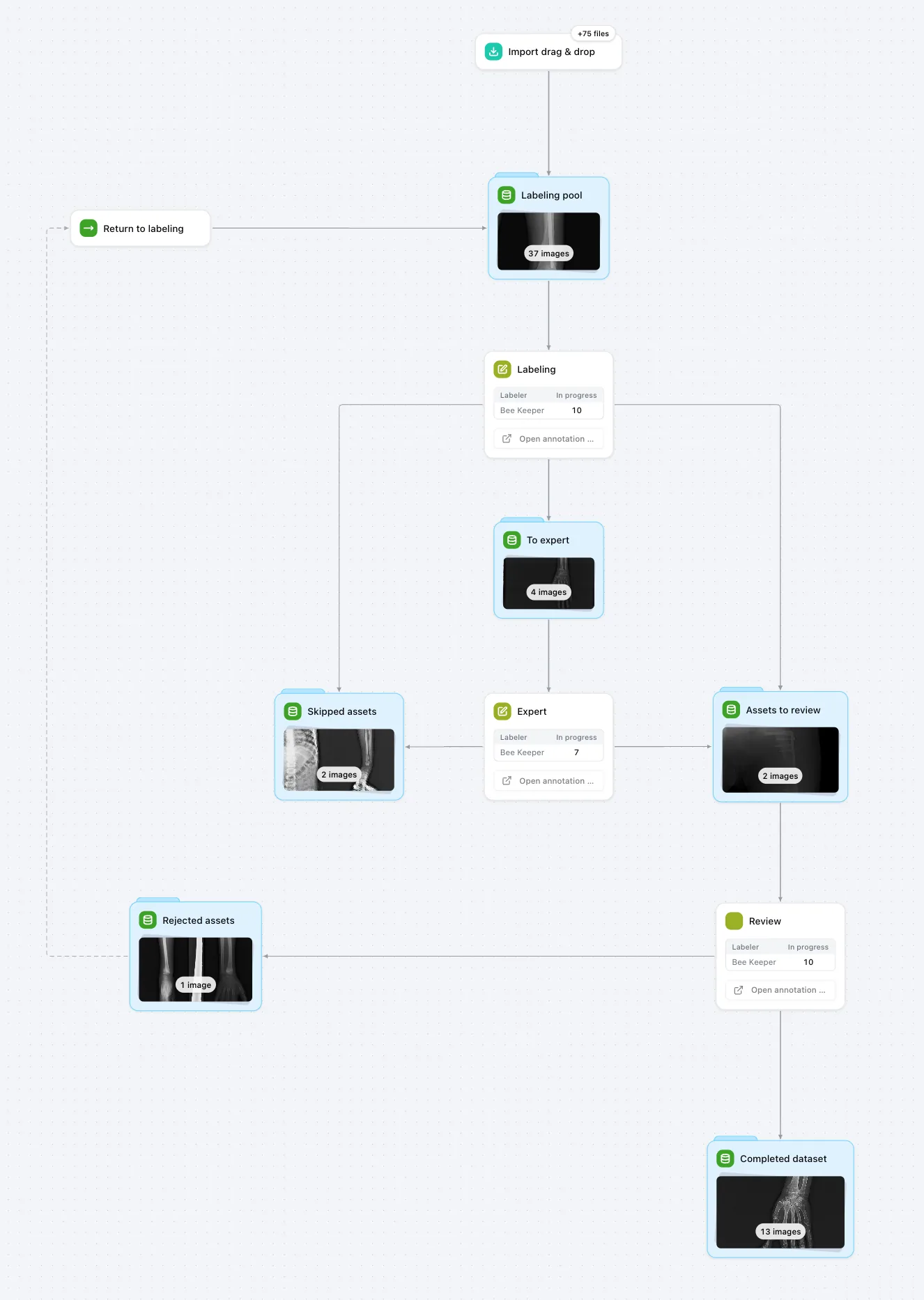
A process, not a pipeline run
Most workflow tools treat a workflow as a program: you trigger it, it executes from the first step to the last, and you get one “execution” to inspect. An OvalBee flow works differently, because computer vision work doesn’t happen in one pass.
In practice this means:
- There is no “run the whole flow” button. You run a node, and when it succeeds OvalBee runs the nodes its flow edges point to, and so on down the chain. To start a chain from one place, put a Run flow node at the top of it.
- Nodes also run on their own. A node can have a schedule, and labeling stages refresh their queues every few minutes while people work.
- A flow is never “finished”. New images keep arriving in the pool, the queue keeps moving, and a training node picks up the latest dataset version the next time it runs.
Runs and automation covers exactly when nodes run.
What’s on the canvas
Nodes
The steps that do the work. Each node comes from a template in the Node Library and shows its status, its main result and a few badges. See Nodes.
Edges
Arrows between nodes. A flow edge means “run the target after the source succeeds”. A visual edge is dashed and never triggers anything — use it to show a loop or a relationship on the drawing. Edges can carry a text label. See Edges.
Groups
A frame around related nodes, with a name, a description and a color. Groups are for reading the flow: they don’t change how anything runs. Dragging the frame moves every node inside it. A node belongs to at most one group.
Sticky notes
Free-form notes with headings, lists, links, images and embedded YouTube videos. Use them to explain the flow to the next person who opens it. Notes never run.
The life of a flow
Create it from a template, from scratch, from an exported file, or by asking an agent. All four give you the same kind of flow. See Build flows.
Set it up. Some nodes need a decision before the flow is useful — which dataset to work on, which people to assign. When a flow has such nodes, the Flow setup dialog lists them and runs them once you’ve filled them in. You can postpone it with Later.
Run it. Run nodes from the canvas, let schedules and upstream nodes start them, and watch progress on the canvas or on the Activity page.
Pause it when you need to. Pausing a flow stops its scheduled runs and nothing else: you can still run any node by hand. Paused flows are marked on the Home page, and skipped schedules leave no history behind.
Version it. Click Versions → Save version in the toolbar to keep a snapshot of the nodes, their inputs, the wiring and the layout. OvalBee also saves one automatically before an AI agent edits the flow and before you restore an older version. From Version history you can view any version read-only, duplicate it into a new flow, or restore it. Restoring is blocked while nodes are running.
Share it with specific people in the workspace, or export it to a file. See Templates and sharing.
Related pages
- Nodes — what a single step is made of.
- Edges and References — how nodes are ordered and how data gets from one to another.
- Runs and automation — manual runs, schedules and what happens downstream.
- Flow editor — working with the canvas.