

Templates and sharing
Start from a template
A template is a ready flow for a common job: importing data, labeling with review, training a detector, evaluating or comparing models, checking dataset quality. It contains the nodes, their settings and the wiring, but none of your data — you point it at your own datasets when you create a flow from it.
On the Home page, click Start from template. The library has three tabs:
- Templates — flows to start from. Filter by task, action, model or dataset, or check Recently used and My templates.
- Live Examples — real flows that ran on real data, opened read-only with their outputs and reports, so you can see what a template produces before using it.
- Case studies — write-ups of complete projects built on these flows, with results and the reasoning behind each setting.
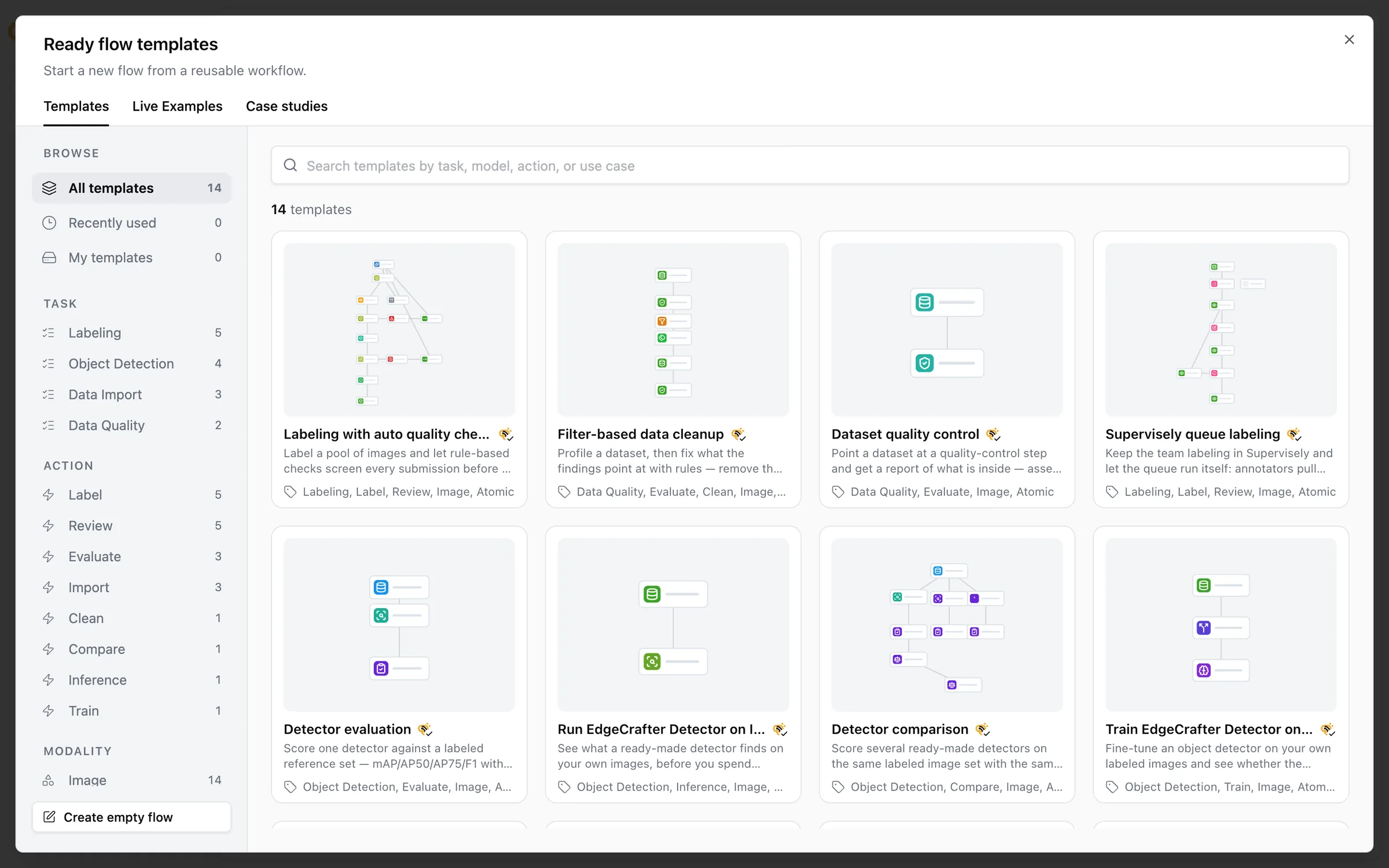
Select a template to read what it does, what it needs and which live examples use it, then click Create flow from template. If the template has nodes that need your input first — usually the dataset to work on — the Flow setup dialog lists them and runs them once they’re filled in.
Inside an open flow, Templates in the toolbar adds a template to the current flow instead: it arrives as a group you move into place and click to drop.
The Use cases section walks through the templates by goal.
Save your own templates
Turn a flow you’ve refined into a starting point for the next project:
- More actions → Save as template… saves the whole flow.
- Select some nodes and click Save selection as template in the toolbar to save just that part — a labeling block, an evaluation branch.
Templates are portable by design. They keep nodes, settings and wiring, and leave out anything tied to one workspace: selected datasets, secrets, models, people and run results. A reference from a saved node to a node outside the selection would break the template, so OvalBee refuses to save it and tells you which reference to fix. Your templates appear under My templates in the library.
Export and import
More actions → Export flow… offers two kinds of file:
You can also export the canvas as a PNG image for slides and documents.
To bring a flow in, use Import from file on the Home page. For a backup, the import dialog lets you name the new flow and decide what happens to its references: clear the datasets that don’t exist in this workspace, keep or clear them all, or reset every input to its default. You can also reset the run state and re-link secrets by name. A template file becomes a new flow directly.
Duplicate in a flow card’s menu on the Home page makes a copy of a flow in the same workspace.
Share a flow with people
Everyone in a workspace sees its flows according to their role. To give someone access to one particular flow — a collaborator who shouldn’t see anything else, or an operator who should be able to edit this one — use Share… in the flow’s card menu or in the editor’s More actions menu. Choose Can view, Can run or Can edit. Sharing only ever adds access on top of the person’s role, and you can grant at most the access you have yourself.
Per-flow sharing is available on plans that include workspace roles.
Public examples
An instance administrator can publish a flow as a read-only public example with its own link. Visitors can explore its nodes, results, reports and data without signing in, but can’t edit or run anything. Secret values are never published, but outputs are — datasets, reports and models the flow produced are part of what visitors see, so publish only flows whose data is meant to be public. Publishing is limited to flows from one workspace chosen by the administrator.
Related pages
- Use cases — templates organized by goal.
- Flows — flow setup and versions.
- Members and roles — who can see and change what.