

Labeling statistics
Follow your labeling project on one page — how fast work moves, how much is left, and how each person is doing.
OvalBee records every button press in the annotation tool: who pressed it, on which image, in which stage, and how long the work took. The Labeling statistics page turns these records into clear numbers for each stage, each person, each class and each image. You see the pace of the project, the load on the team and the quality of the work without building a single report yourself.
Opening the page
- In the main sidebar, open Labeling and click Statistics to see every labeling stage in the workspace.
- On a Labeling or Review node, click the chart button next to Open annotation tool to see that node only. The Labeling page has the same button next to each stage.
- On Home, the My labeling tasks block has Statistics for everything and Stats for each task.
The filters are saved in the page address. Copy the link to share exactly the view you see.
Filters
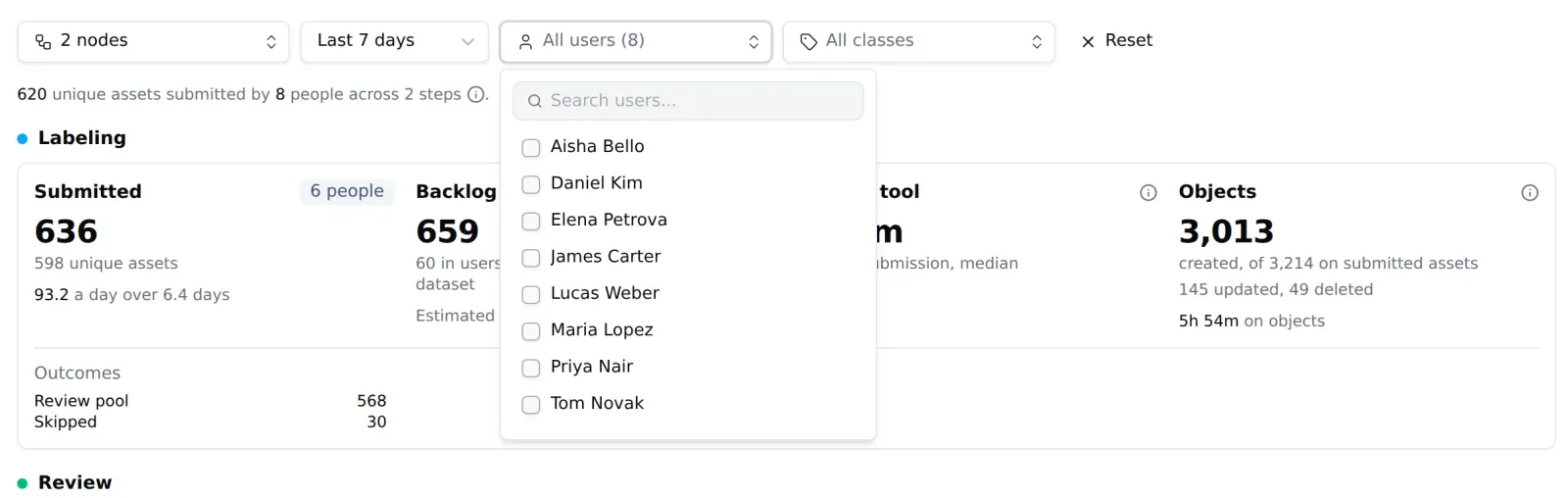
- Nodes — the Labeling and Review nodes to show, grouped by flow. Select a whole flow to see all its stages together.
- Period — Last 24h, Last 7 days (the default), Last 30 days, All time, or your own range of days. Days follow your time zone.
- Users — everyone who works on the selected nodes.
- Classes — only images with objects of these classes.
Click a person or a class in any table to filter by them. Click again to remove the filter. Reset clears everything.
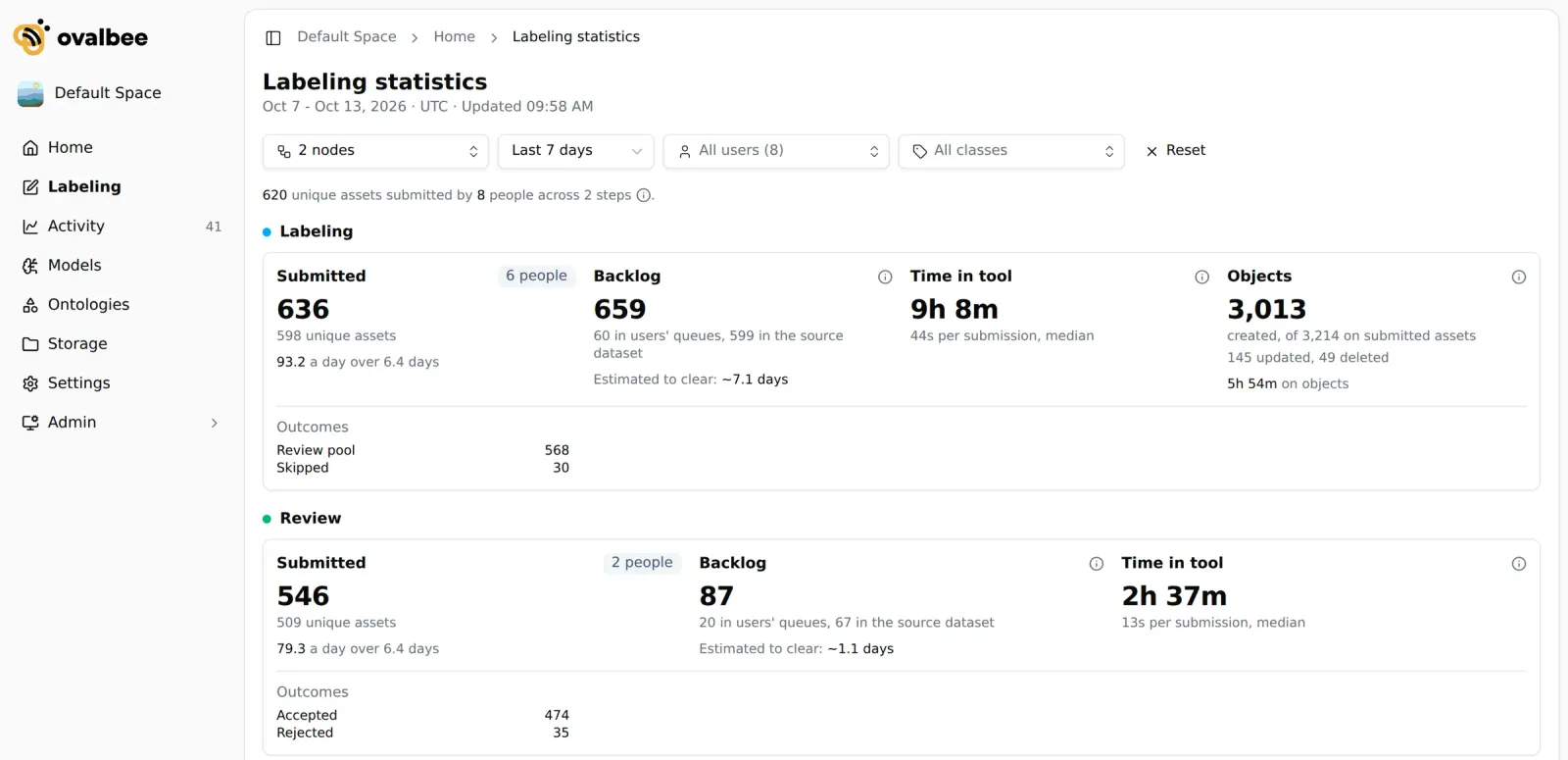
Each stage has its own numbers. When an image is labeled and then reviewed, it counts once in Labeling and once in Review. The line above the cards shows the total: how many different images were submitted and by how many people.
Totals per stage
Each stage — Labeling and Review — has its own card.
Submitted shows how many times people sent an image on with a button in the period, how many different images that was, and how many people did it. Below it is the pace: images per day.
Backlog is the work waiting right now: images in people’s queues plus images still in the stage’s source dataset. Estimated to clear tells you how many days the backlog takes at the current pace. Remove the user and class filters to see it.
Time in tool is the total time people spent on submitted images in the annotation tool, with the median time per image. It includes short pauses: up to about 40 seconds after the tool opens and up to about 70 seconds after the last action.
Objects (Labeling only) shows how many objects people drew, out of all objects on the submitted images, and how many existing objects they changed or deleted. Time on objects is the time spent drawing and editing them. When an image passes through two Labeling stages, its objects count once.
Outcomes shows where images went, for each node. Each image counts once, by the last button pressed on it: an image skipped and later labeled counts as labeled.
Submitted per day

One bar per stage for each day. Hover a day to see its submissions and time in tool. For periods longer than 30 days, the chart shows the last 30.
Members

One row per person. Use the tabs to switch between stages. Queued is what the person has in their queue right now. Outcomes counts every button press, so an image submitted twice counts twice.
Pipeline
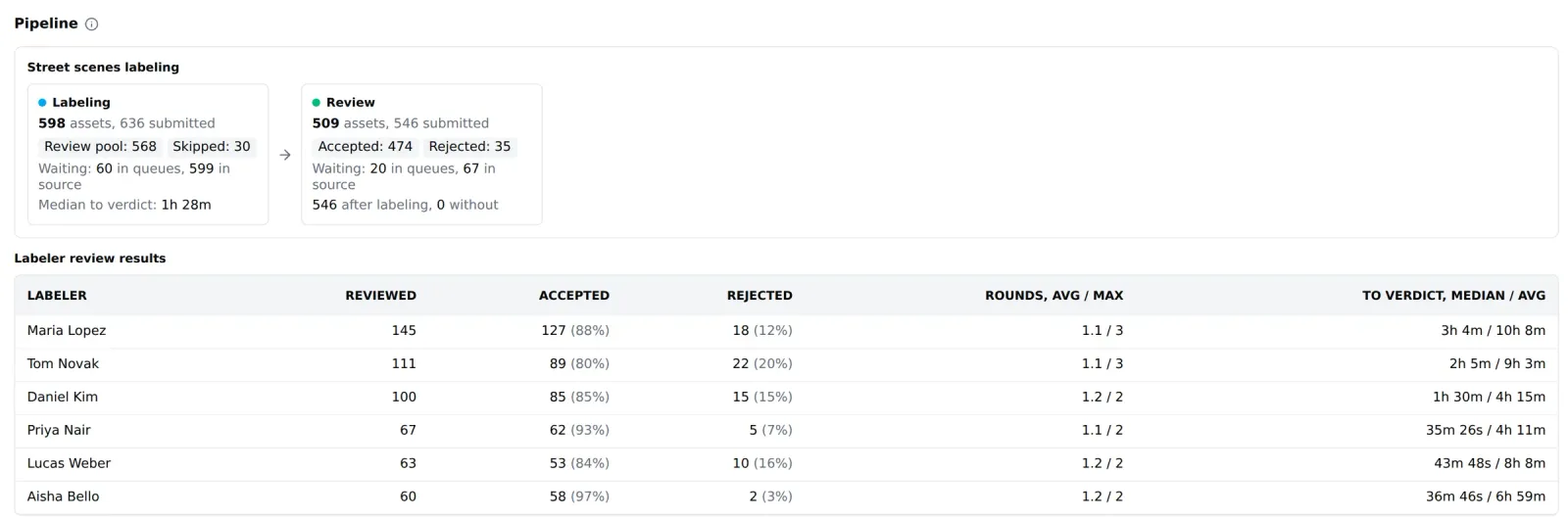
Pipeline shows the stages of each flow in order. Each box shows the images and submissions of the node, its outcomes, and the work waiting in queues and in the source dataset. A Labeling box also shows the median time from labeling to review. A Review box shows how many of its decisions were about images labeled in this flow.
Labeler review results links every review decision to the labeling it judged. For each labeler you see:
- Reviewed — how many of their images were reviewed.
- A column for each review outcome — how many images got it, and the share of all their reviewed images.
- Rounds, avg / max — how many times an image was labeled before the decision. 1 means it passed the first time.
- To verdict, median / avg — the time from labeling to the review decision.
Here the period applies to the review decision.
Classes and images

Classes on the labeling step shows the Labeling stage class by class: images and objects, objects created, updated and deleted, time on objects and time per object. If a class was renamed in the ontology, it stays one row with its newest name.
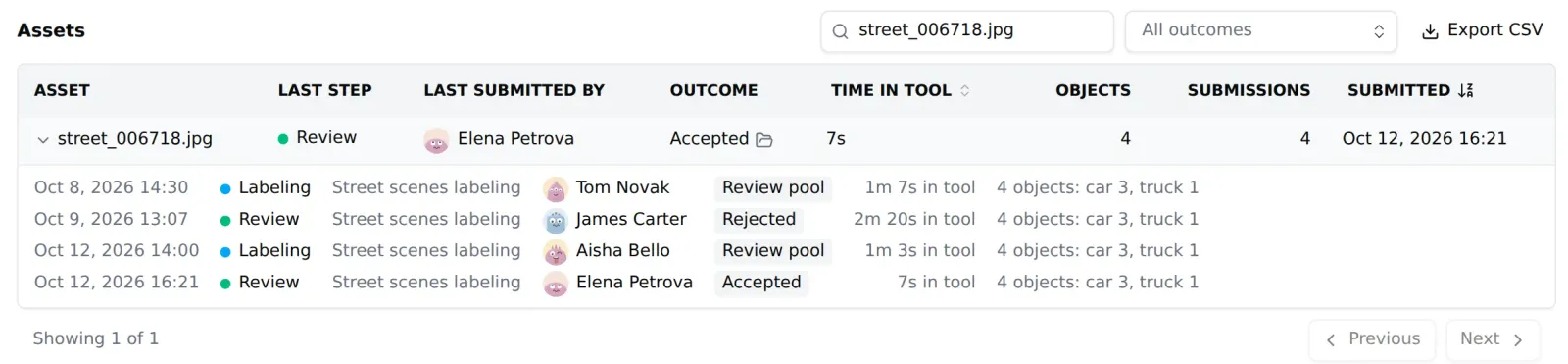
Assets lists every submitted image: its last stage, who submitted it last, its outcome, time in tool, objects and number of submissions. Search by file name or ID, filter by outcome, and sort by time or date. The folder icon next to an outcome opens that dataset in Storage.
Click a row to see the image’s history: every labeling and review, from first to last, with the person, the button they pressed, the time it took and the objects by class.
Export to CSV
Members, Classes and Assets each have an Export CSV button. Use the files for your own reports, payroll or invoices:
- Members — every person on every stage.
- Classes — the class table.
- Assets — every image that matches the filters, not only the page you see, up to 50,000 rows.
Times in the files are in seconds.
Roles and access
Each person sees the statistics their workspace role allows:
So outside labelers can check their own progress, while the project lead sees the whole team. Roles are available on plans that include workspace roles. See Members and roles.
Progress on the canvas
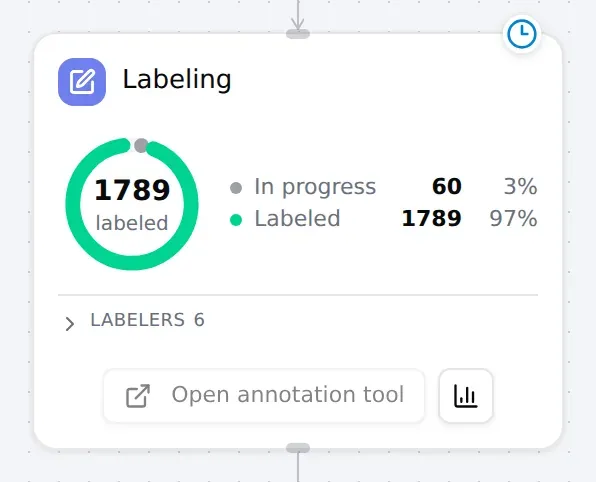
Labeling and Review nodes show a ring chart of their stage. Labeling shows what is in progress and what is labeled. Review shows what is in progress, accepted and rejected. Open the list under the chart to see each person’s count, and click a person to see only their part. The chart updates about a second after each button press in the tool.
Related pages
- Labeling — stages, pools and outcomes.
- Organize labeling — ready labeling flows to start from.