

Flow editor
The flow editor is where you build, run and watch a flow. This page is a tour of what it can do. The ideas behind it — nodes, edges, references — are explained in Concepts.
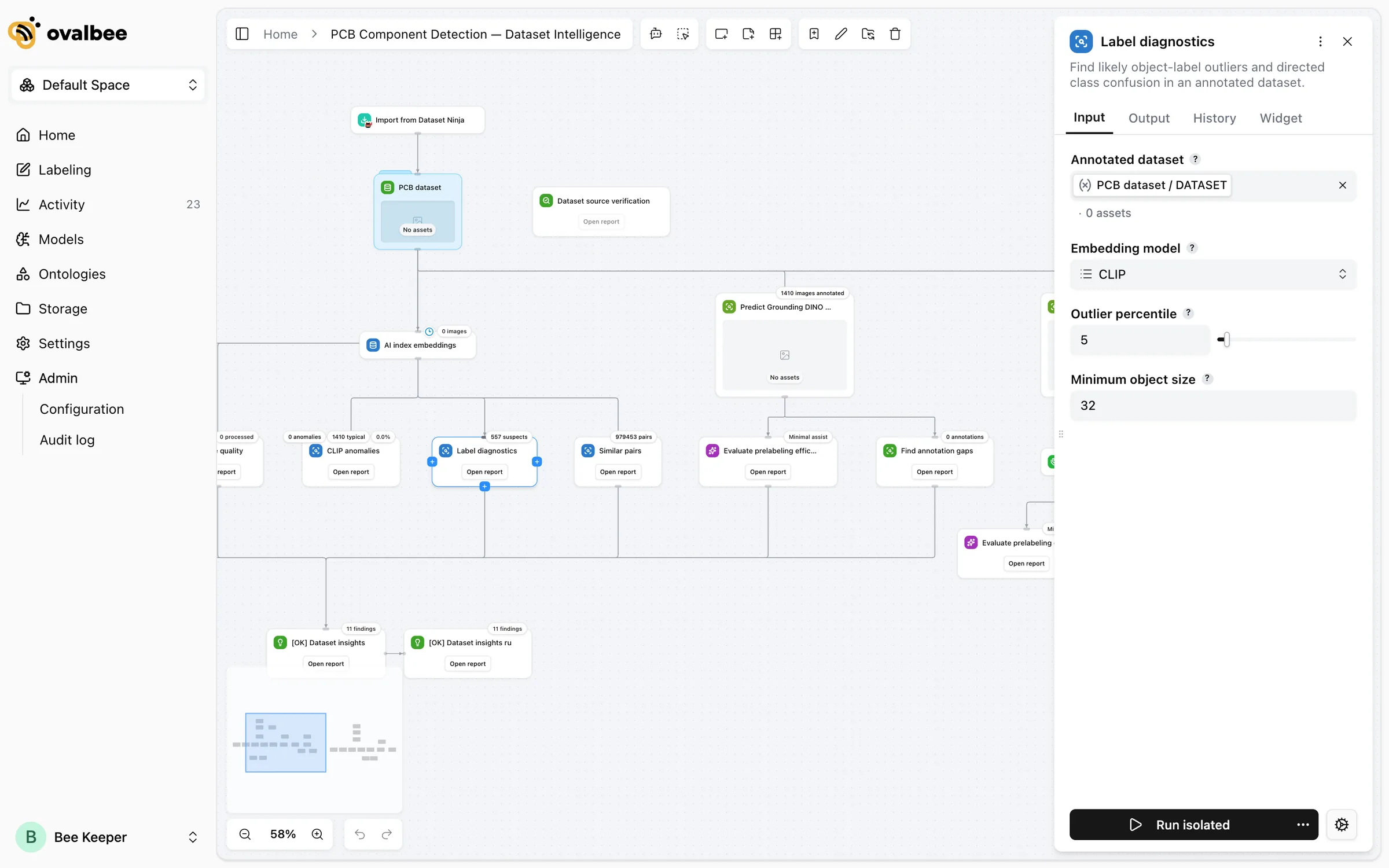
- The toolbar at the top holds AI Chat, adding nodes and notes, templates, grouping, the flow’s versions and running tasks, flow settings and the More actions menu.
- The sidebar on the right opens when you select a node.
- The bottom left has zoom, undo and redo, and the mini map.
Scroll to pan, and hold Cmd (macOS) or Ctrl while scrolling to zoom.
Adding nodes
Open the node picker in whichever way is closest to hand:
- Add a new node in the toolbar,
- double-click an empty spot on the canvas, or right-click it and choose Add node here,
- drag a connection from a node’s handle and drop it on empty canvas — the new node comes already connected,
- hover an edge and click + to insert a node in the middle of it.
The picker groups nodes by category and has a search box that matches names first, then descriptions. After you pick one, the node follows your cursor until you click to place it. Press Esc to cancel.
To add a whole prepared piece of flow, click Templates in the toolbar: the template arrives as a group you move into place and click to drop.
Configuring a node
Select a node to open its sidebar, fill in its inputs, and bind inputs to other nodes’ outputs with the link icon that appears when you hover an input. Edges and references covers binding in detail.
Press E on a selected node to edit how it looks on the canvas: its name, description, icon and appearance — Default, the smaller Compact, or Folder.
Connecting nodes
Drag from a handle on one node to another node to draw a flow edge. Hold Alt while dragging to draw a visual edge instead. Right-click an edge to edit its label, insert a node, convert it between flow and visual, or delete it. Double-clicking an edge also edits its label.
Nodes have handles on all four sides. Flows usually read top to bottom, and side handles are handy for drawing a loop back up or a branch to the side.
Selecting
- Click a node, or
Cmd/Ctrl-click to add more to the selection. - Hold
Shiftand drag to lasso-select an area. - Right-click a node for Select above (everything upstream of it), Select below (everything downstream) or Select subflow (both).
Organizing the canvas
- Groups. Select two or more nodes and press
Cmd/Ctrl+G. Give the group a name, a description and a color from its toolbar. Dragging the frame moves everything inside. - Sticky notes. Click Add a sticky note in the toolbar. Notes support headings, lists, links, images and YouTube videos.
- Align layout. Press
Cmd/Ctrl+Shift+Lto tidy the whole flow into a clean top-to-bottom layout. - Open focus. Right-click a node and choose Set as open focus to make the canvas center on it whenever someone opens the flow — useful when a large flow has one node people care about most.
Copying and pasting
Right-click a node or a selection and choose Copy node or Copy selected nodes, then right-click the canvas — in the same flow or another one — and choose Paste here. References between the copied nodes are kept. References to nodes that weren’t copied are cleared, and the copies start without outputs, so nothing points at results it didn’t produce.
Undo and history
Cmd/Ctrl+Z undoes and Cmd/Ctrl+Shift+Z redoes the last 30 changes to the canvas: adding, moving, connecting, grouping and deleting. Changes to input values aren’t part of undo — to go back further, restore a saved version from Versions in the toolbar. See Flows.
Working together
On plans with live flow collaboration, several people can edit the same flow at once: their avatars appear in the toolbar with is editing this flow, and changes show up for everyone as they’re made. Node statuses and progress update live for everyone who has the flow open.
Flow settings
The settings button in the toolbar holds a few personal preferences:
Keyboard shortcuts
On Windows and Linux, use Ctrl wherever Cmd is listed.
Related pages
- Build with an AI agent — let an agent do the building.
- Templates and sharing — starting points, export and access.
- Runs and automation — running nodes from the sidebar.